Step-by-step to open the .csv file in Excel
Importing your .csv data file in Excel already begins with having to open the .csv file in a specific way. You can’t go to your explorer and open the file (sometimes that seems to work, but your columns won’t all be working as expected). Follow these steps to make sure your .csv is correctly imported into Excel:
- Open Microsoft Excel on your device
- Click “Open”
- Choose your file
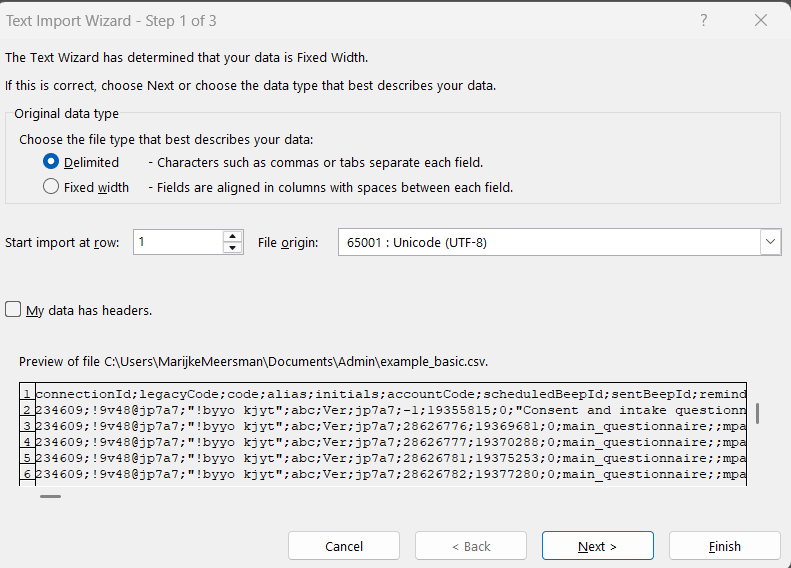
- The “Text Import Wizard” should now open on “Step 1 of 3”.
- Choose “Delimited” (because our .csv uses semicolons to separate the fields).
- Click “Next”
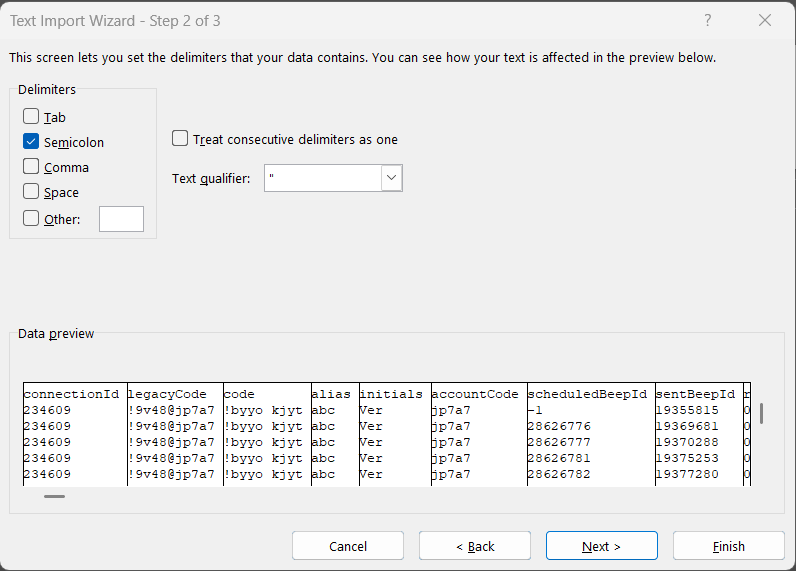
- In step 2 of 3 of the Wizard, select “Semicolon” and deselect all other options (if they were selected). The text qualifier should be double quotes (“).
- Click “Next”.
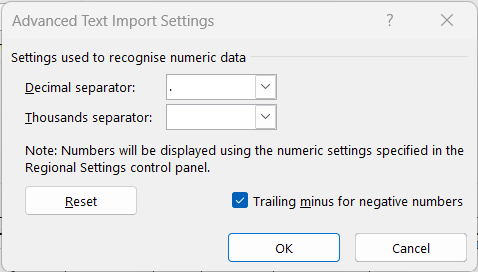
- In step 3 of 3 of the Wizard, click on “Advanced…” and you’ll see the following pop-up. Select a dot as “Decimal separator” and a space as the “Thousands separator” to get the optimal results. And leave the marker for “Trailing minus for negative numbers” on.
- Optional step if you have columns from multiple choice questions where users could select multiple options so you have fields that look like this “1,2” or “3,4,5” or “1”. Excel will mix the fields up and see some as numbers and some as text. So to avoid that, you can click on the column in the Data preview and select “Text” as Column data format. This is not mandatory, but may prevent problems later. If you’re not sure or can’t find the column directly, we also have an explanation on how to change the data type when the file is already imported further down this page.
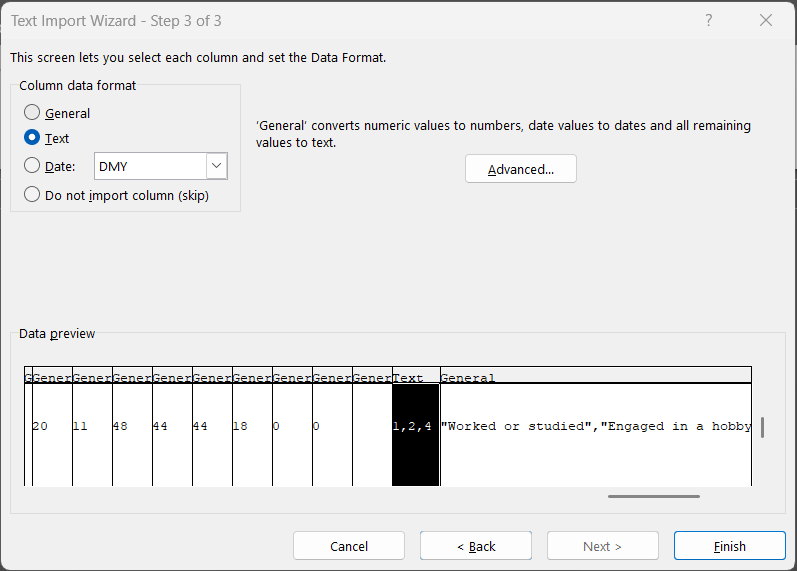
- Click “Finish” and now it should be imported correctly!
- Excel will most likely give you a warning “Possible data loss”. It’s best to save this file as a .xlxs file, certainly if you want to make changes to the file, or you’ll need to open this .csv multiple times.
Tips and tricks, troubleshooting
If you’re having issues, we’d like again to redirect you to importing and analysing your data in R. This will most likely go much smoother and will save you time.
Change data type of column
Problem
You’re working in Excel, but some fields in a column are recognized as numbers, while others in the same column are treated as text.
Pro tip: When a cell’s content is right-aligned, Excel sees it as a number (something it can perform calculations on). When it’s left-aligned, Excel treats it as text (something it can’t use in calculations).

In this image, you can see that the “1” is right aligned, meaning Excel thinks this is a number. “1,2,4,5,6” is left aligned so it will treat it as a string. But when you want to handle this data from this column, it will act funky because it’s not just one type.
Solution
Select your column. Go to tab “Home”, Subtab “Number” and open the dropdown and choose “Text” (or the data type you need). You should now see that all the data is aligned to the left and more importantly, all the data of that column will now behave the same.

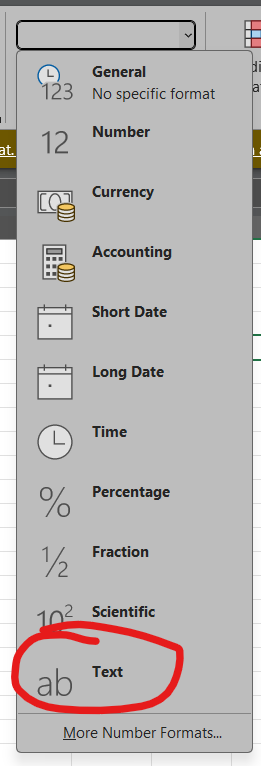
Of course, this is also your course of action if you require another data type. Experiment with it and see what works best for your data.
Change decimal separator
Problem:
Your system (typically in Belgium or other European countries) expects a comma to be the decimal separator, so your numbers might act strange or give errors.
Solution 1: Change it for this file only
If you don’t want all your Excel files to have this format, only this one, then you have to import the file again according to the steps provided, and make sure you follow step 9 correctly. This will make sure the separators are set correctly but only for this file.
Solution 2: Change it for all Excel files
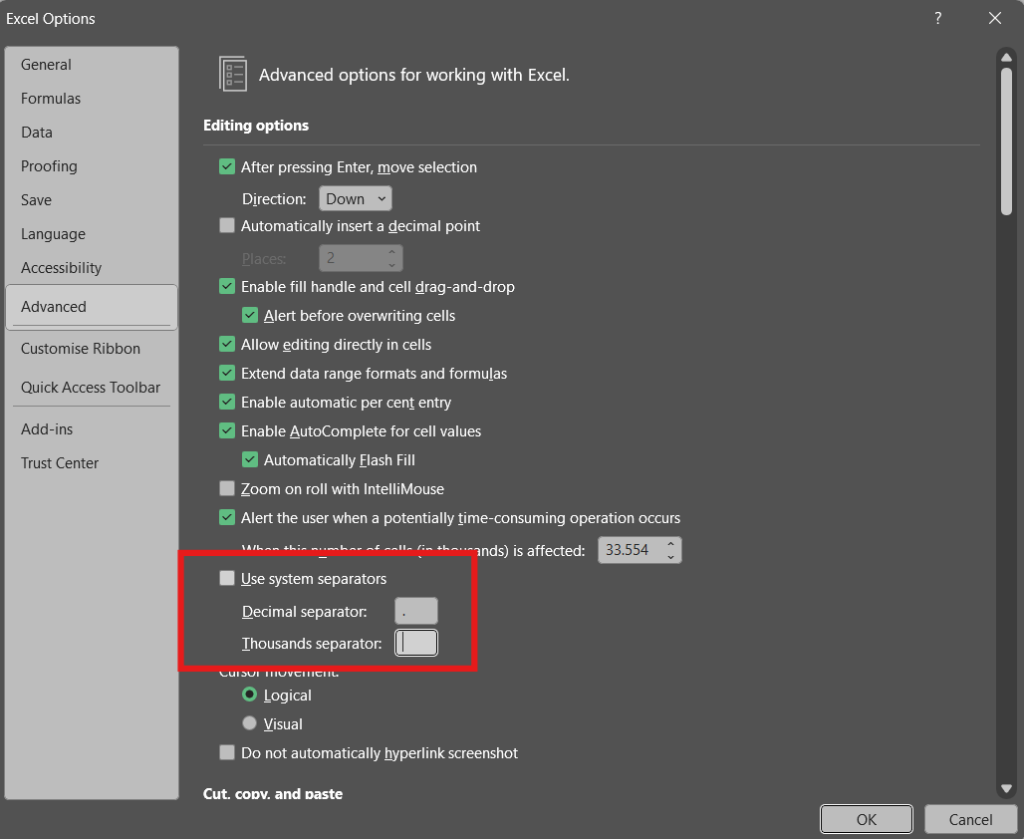
Go to your Excel to File –> Options –> Advanced. Uncheck “Use system separators” and choose a dot as a Decimal separator and type a space in the Thousands separator field. You possibly need to restart your Excel (or open your .csv again), but from now on, it should always recognize a dot as a decimal separator.