
The m-Path Keyboard is a specialised tool designed for researchers to gain insights into participants’ keyboard behaviour. It offers a range of logging capabilities to track various aspects of user interaction, including:
• Recording every keystroke or configurable intervals (every nth keystroke).
• Capturing keyboard events and user interactions with keyboard suggestions.
• Collecting metadata related to keyboard usage without accessing raw data.
This functionality allows researchers to analyse typing patterns, user preferences, and interaction dynamics, providing valuable data for studies in human-computer interaction, cognitive psychology, and other fields.
Keyboard integration
To enable the m-Path keyboard. Go to the m-Path app. Open the settings and click on extra -> Keyboard.
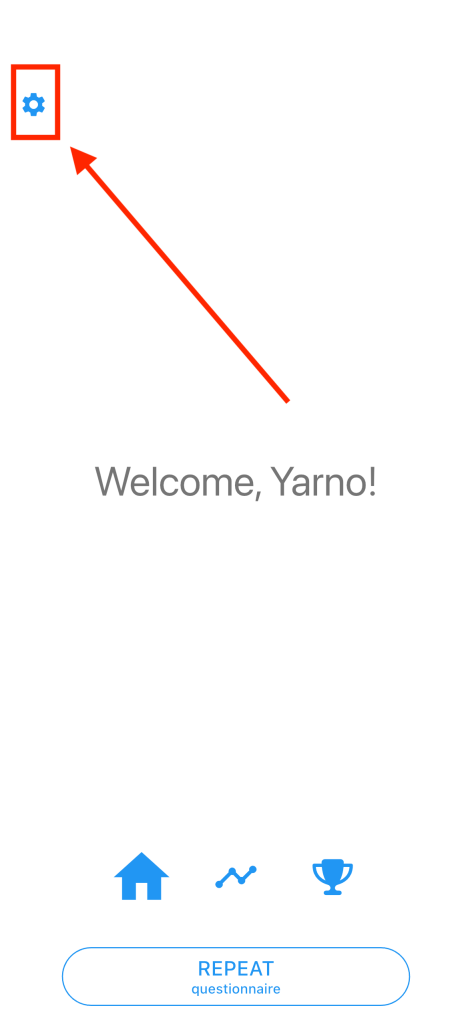
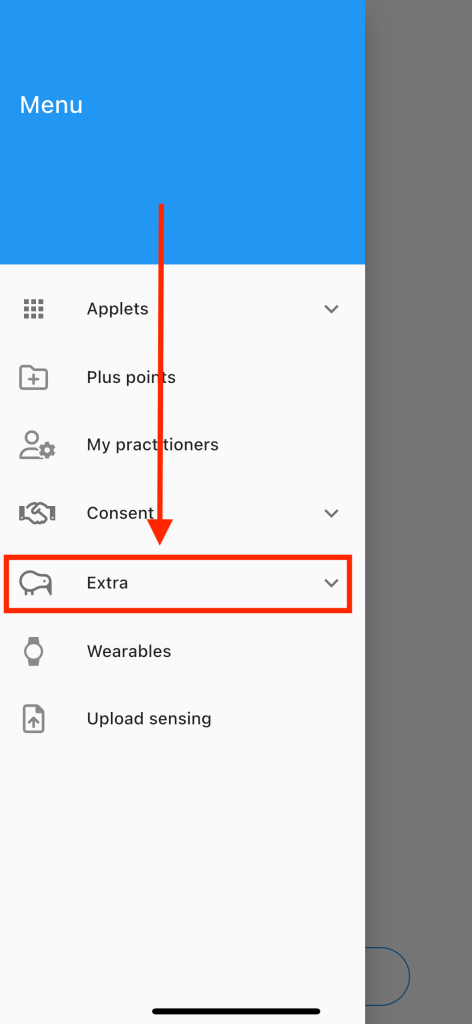
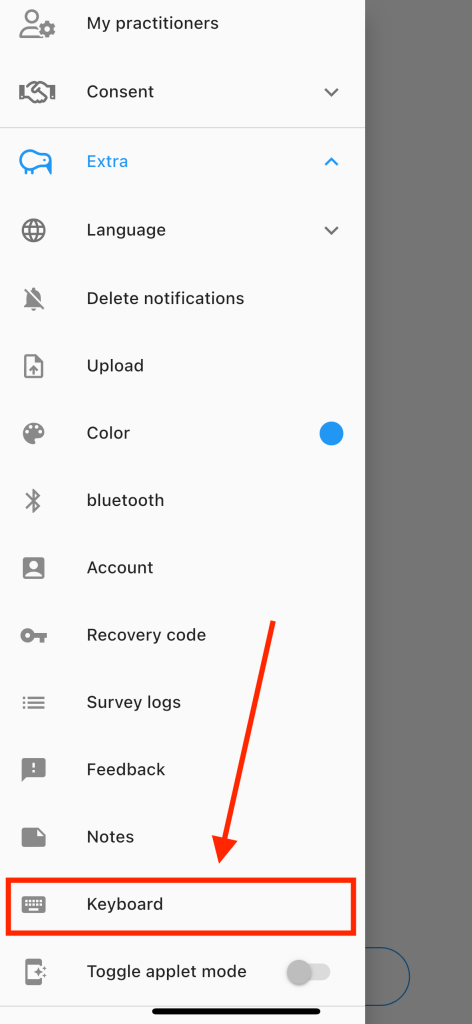
Once you are on the keyboard settings page, follow the provided steps. Click “Open Device Settings” after reading all the instructions. You can also change the keyboard layout and the language for auto-suggestions. Click the keyboard icon in the upper right corner or the globe icon to change the layout or language. Currently implemented layouts are:
- azerty_nl_be
- qwerty_nl_nl
- qwerty_en_us
- qwerty_en_gb
- qwertz_de_de
- azerty_fr_fr
It is possible to request other layouts. Reach out to us for more information!
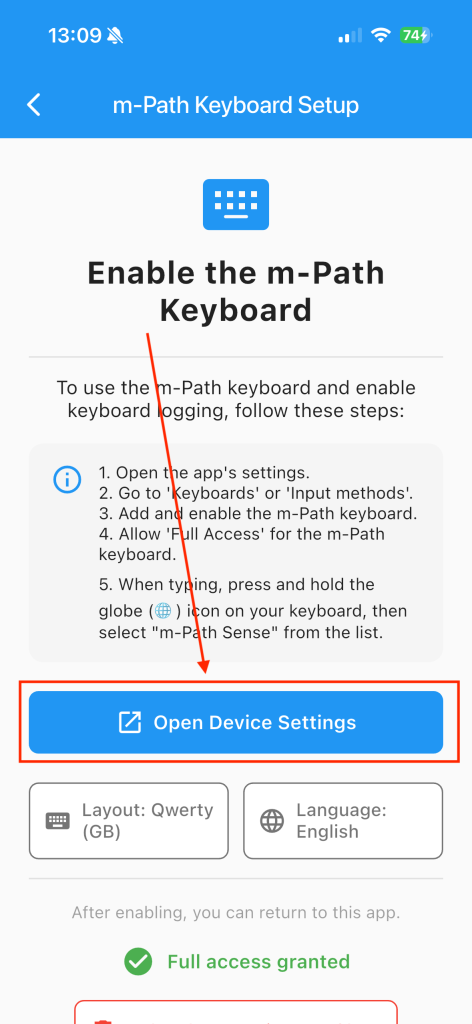
Clicking this button will redirect you to the settings app on your phone. Go to Android integration for further instructions on the Android keyboard. All information for iOS is located under iOS integration.
To change the layout of the keyboard or the language of the auto suggestions, click on these buttons, a pop-up will open where you can choose a different option.
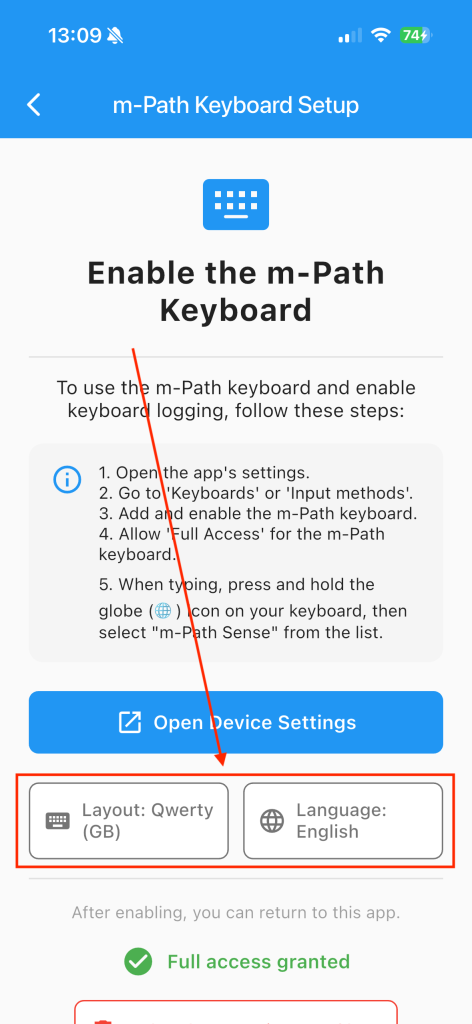
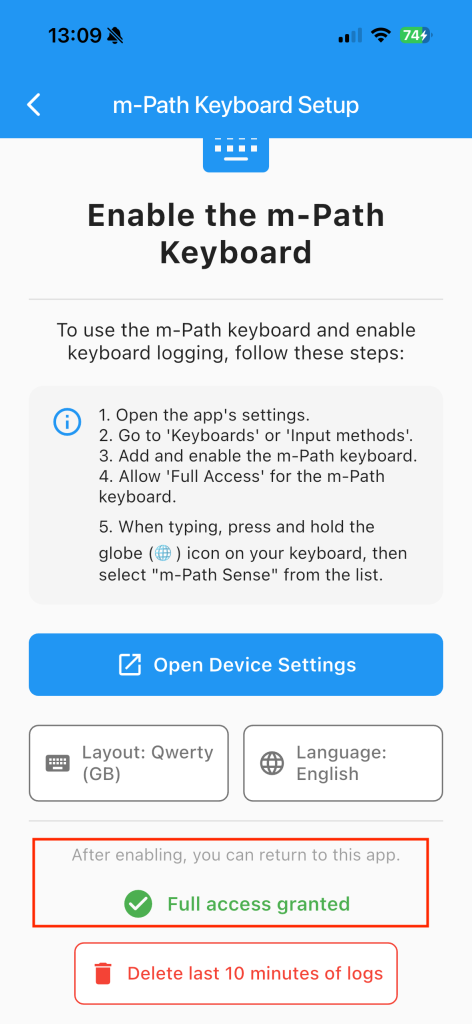
On iOS participants can see in the app if full access is granted. This is necessary in order for researchers to access the keyboard data.
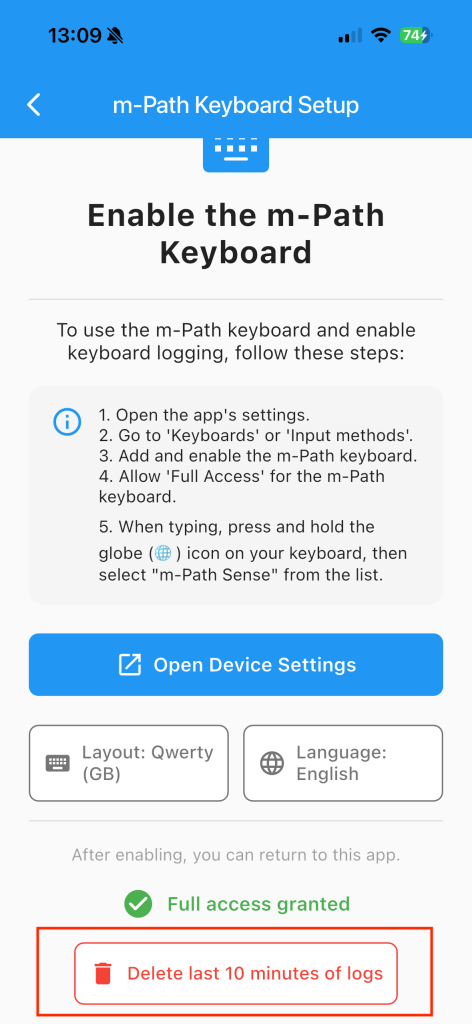
The participant can always opt in to remove the last 10minutes of keyboard data.
iOS Integration
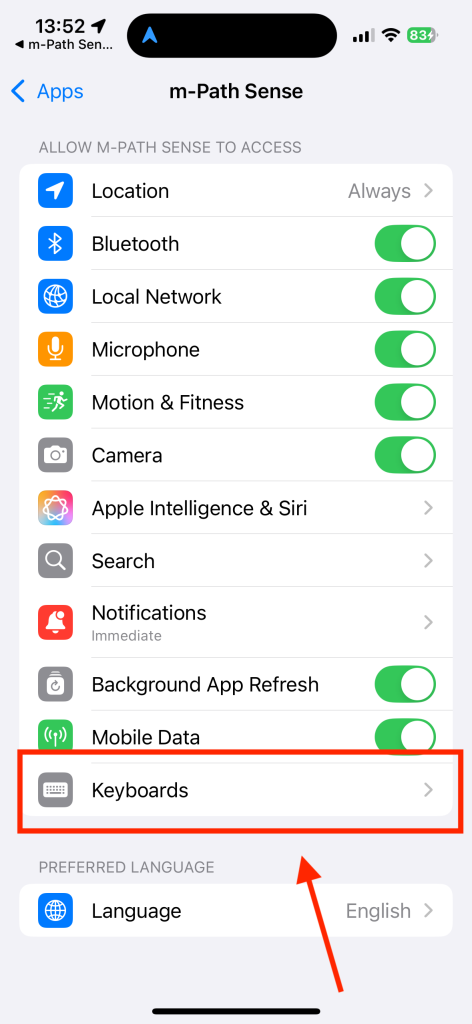
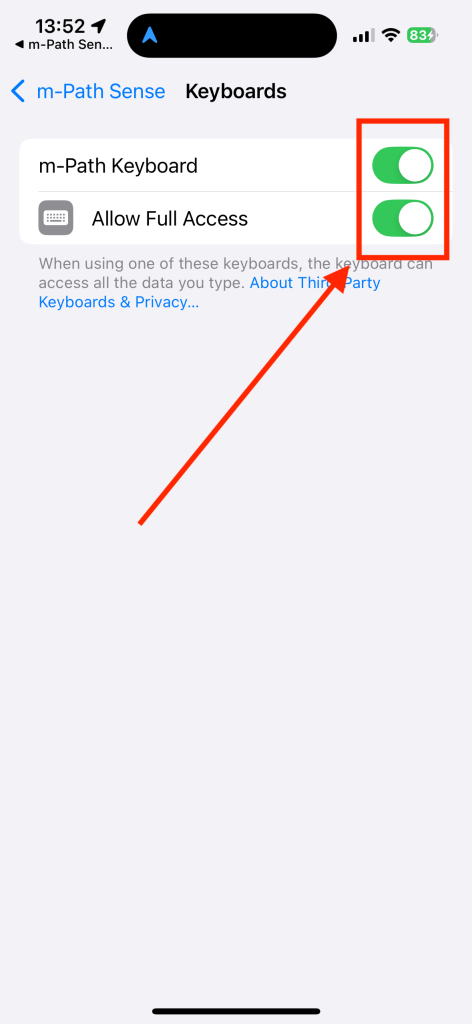
When you are on the keyboard settings page, please turn on the m-Path Sense keyboard and do not forget to turn “allow full access” on. This allows researchers to actually request the keyboard data.
Android integration
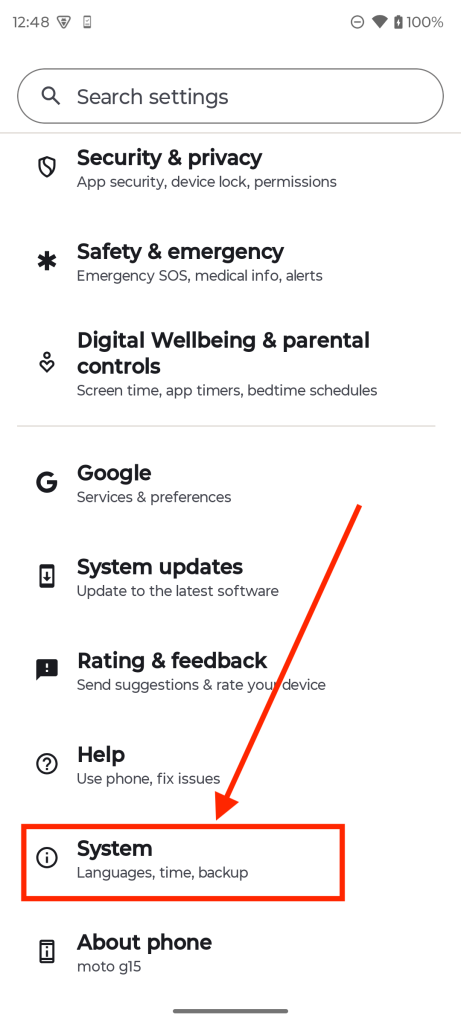
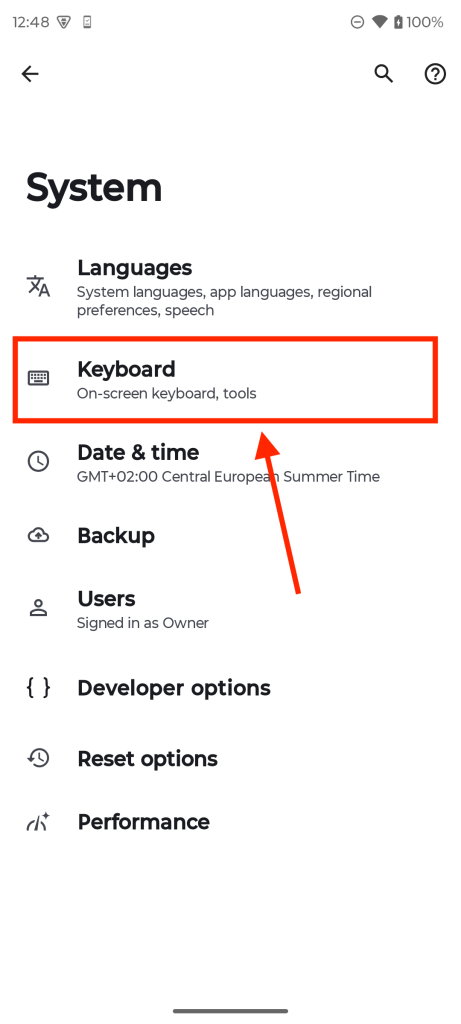
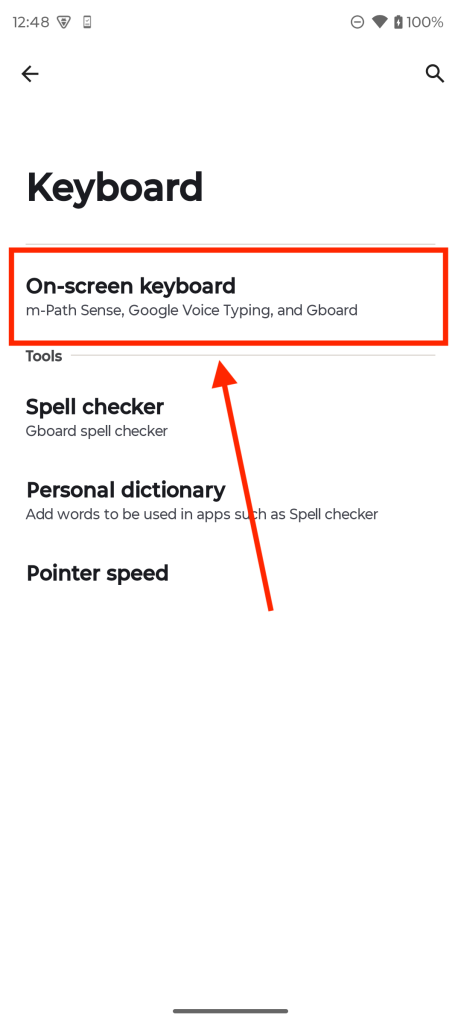
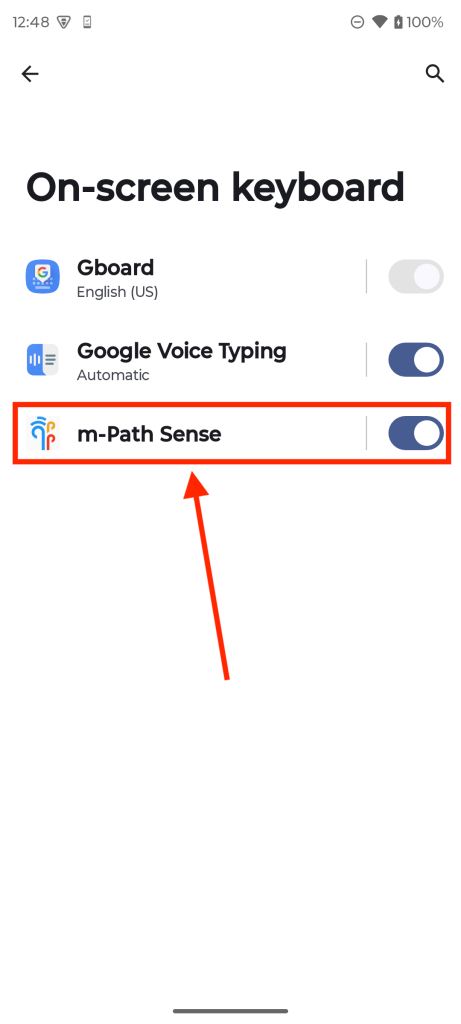
When using an Android device and clicking the “Open Device Settings” button in the m-Path Sense app, we will be redirected to the system settings on our phone. Once here, click System > Keyboard > On-Screen Keyboard, and toggle m-Path to on.
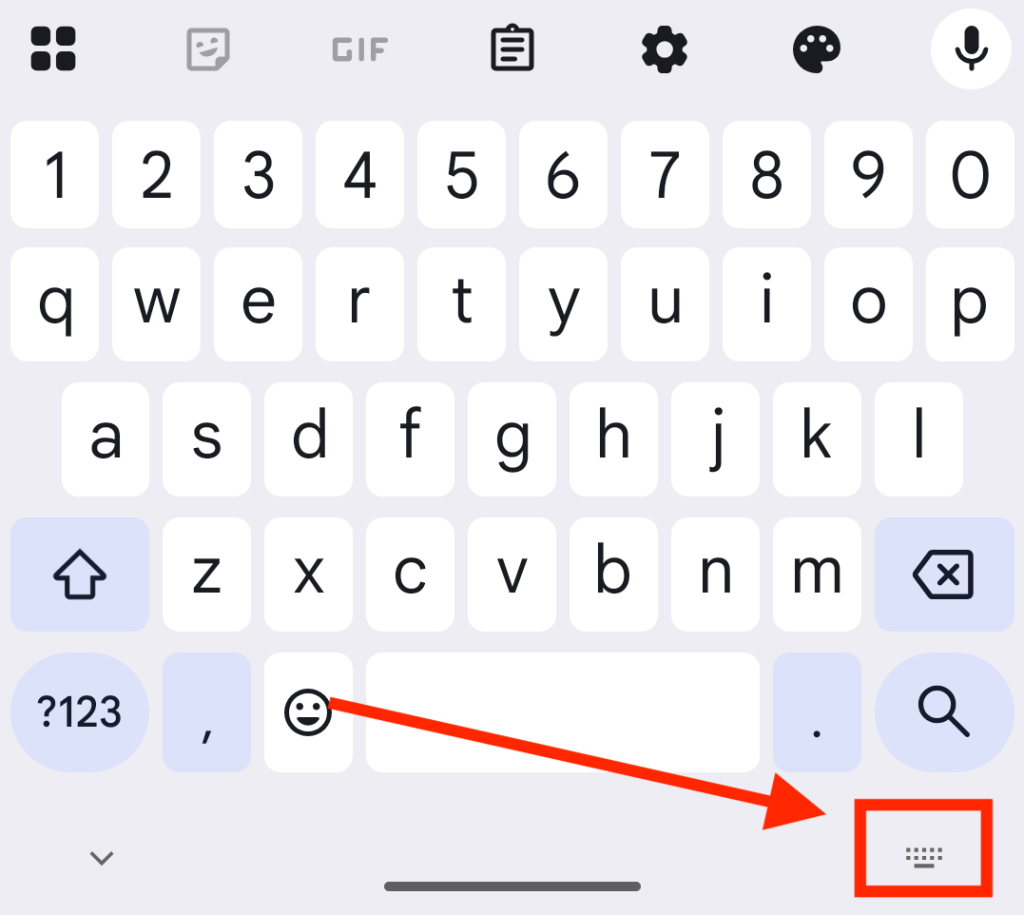
To start using the m-Path keyboard, open up the keyboard and tap the keyboard icon.
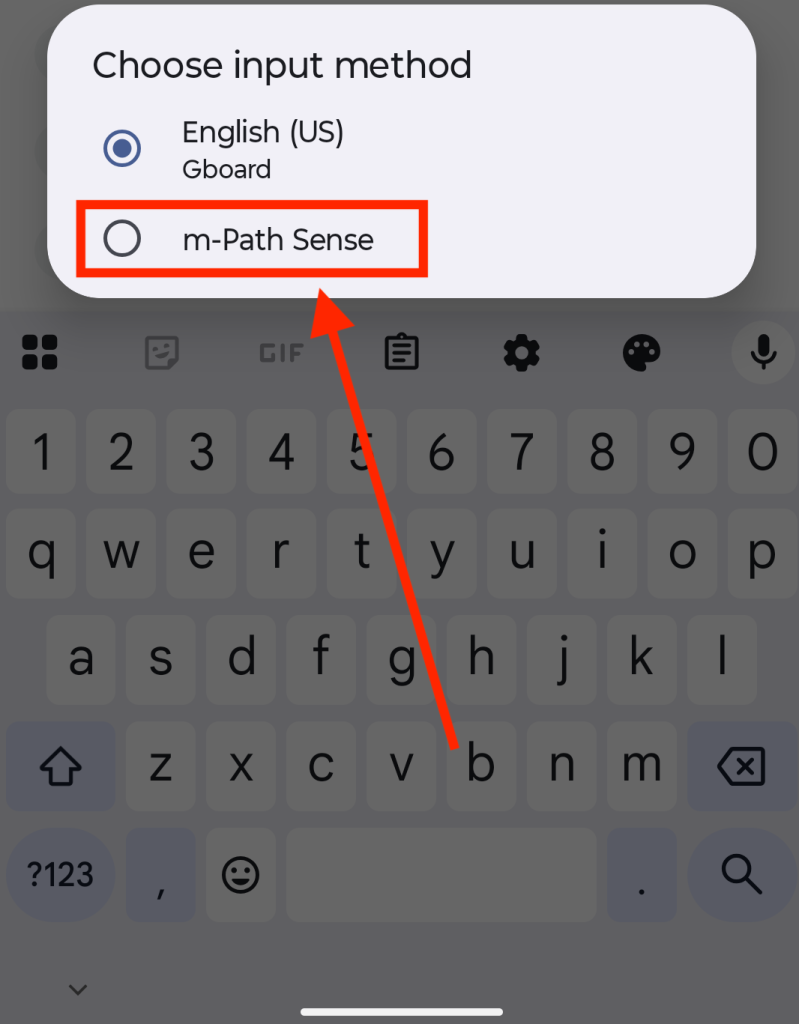
A small dialog will show asking you to change the keyboard. Click m-Path Sense to start using the m-Path Sense keyboard.
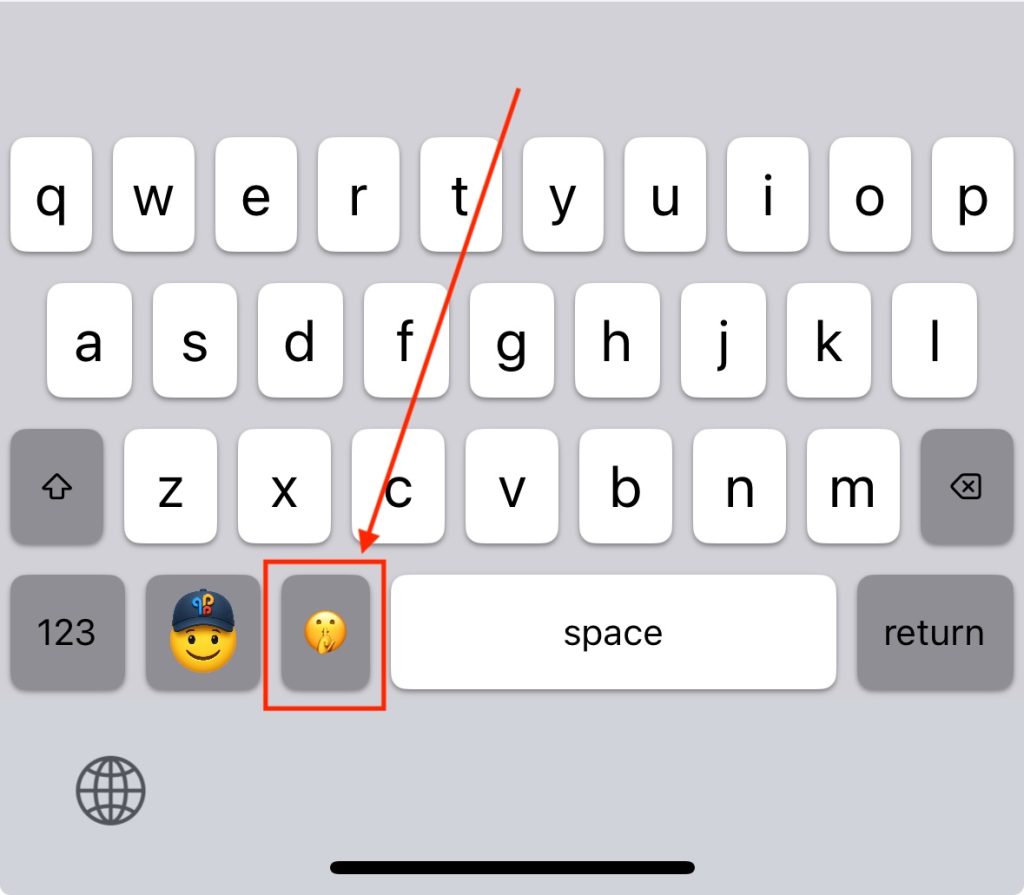
Temporarily disable data capture
To stop data capture click on the ‘shush’ button on the keyboard. Click it again to turn it back on.
Logged events
A typical JSON of the logged events looks something like this.
[
   {
      "timeStamp":1752579006.4195681,
      "event":"KEYBOARD_ENGAGED"
   },
   {
      "char":"D",
      "timeStamp":1752579008.3268549
   },
   {
      "timeStamp":1752579008.5640631,
      "char":"e"
   },
   {
      "timeStamp":1752579009.612931,
      "char":"m"
   },
   {
      "timeStamp":1752579010.0123239,
      "char":"o"
   },
   {
      "char":"SP",
      "timeStamp":1752579010.461319
   },
   {
      "char":"RT",
      "timeStamp":1752579011.426641
   },
   {
      "char":"t",
      "timeStamp":1752579011.926105
   },
   {
      "char":"BP",
      "timeStamp":1752579012.8246419
   },
   {
      "event":"KEYBOARD_DISMISSED",
      "timeStamp":1752579013.8575258
   }
]
There are three unique chars that can be logged:
- RT: Return
- SP: Space
- BP: Backspace
And there are three other events that can be logged:
- KEYBOARD_DISMISSED > Will be logged when the user dismisses the keyboard, or the keyboard is dismissed automatically
- KEYBOARD_ENGAGED > Will be logged when the user or the system opens the keyboard
- AUTO_COMPLETE > Will be logged when the user clicks on a suggested word. The clicked word will also be logged together with this event.
keyboard setup in dashboard
To start using the keyboard feature as a researcher, it is important to first set it up using the dashboard.

Current configurable options are:
- logKeys: This will log every keystroke with their character, and timestamps.
- logAutoSuggestions: Will log an event when the user taps the auto suggestion, it will also log the word that was tapped.
- logKeyboardEvents: Log specific keyboard events. For example when the user dismisses the keyboard.
- logEveryNWord: Log every nth word, nth word is specified at wordLoggingInterval.
keyboard upload in dashboard
To get the data for research, you can use the keyboardUpload question type in the m-Path dashboard. This will upload the data directly to your pCloud or Onedrive. Make sure you have set this up in the settings for your account.
